Appearance
Open the WinTheClicks sidebar
If the WinTheClicks panel is missing, you can reopen it in a few clicks. Closing the sidebar does not uninstall the extension.
From your browser
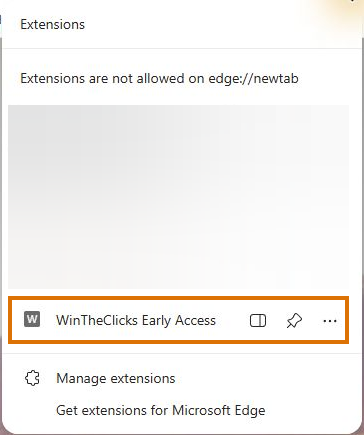
- Look for the Extensions button — the puzzle-piece icon near the top-right corner of Microsoft Edge.
- Click it to open the extension list.
- Find WinTheClicks Early Access, then click its name or the Open in sidebar icon beside it.

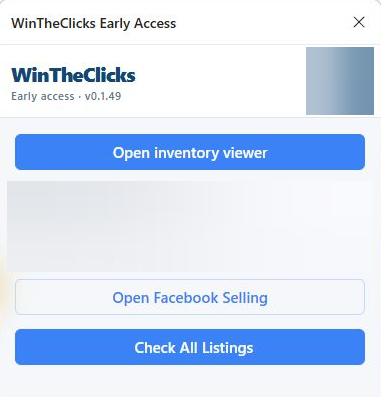
The WinTheClicks sidebar opens on the right side of your browser. If you are already signed in, your tools appear there. Depending on your sign-in state and the current page, the inventory viewer may also open.
Keep the extension easy to find
The pin icon beside WinTheClicks in the Extensions menu lets you pin its button to your browser toolbar. Next time, click that button to open WinTheClicks.
From the inventory page
If your WinTheClicks inventory is already open:
- Find Open sidebar near the top-right of the inventory header, beside the account button.
- Click Open sidebar. The panel opens on the right.

If you are signed out, the inventory page may show Open sign-in sidebar instead. Open it, then choose Sign in with WebUI in the sidebar.
Still cannot find it?
- No WinTheClicks entry in Extensions? Check that you are using the browser and profile where WinTheClicks was installed. If you normally use WinTheClicks Browser, launch its usual Windows shortcut.
- A different sidebar is open? Select WinTheClicks again from the Extensions menu.
- The sidebar is already visible? You are ready to continue. The inventory's Open sidebar button may hide while the panel is open.
Screenshots were captured from the running Edge extension. Personal information and unrelated browser details have been cropped or blurred. Browser appearance and extension version labels may vary.